
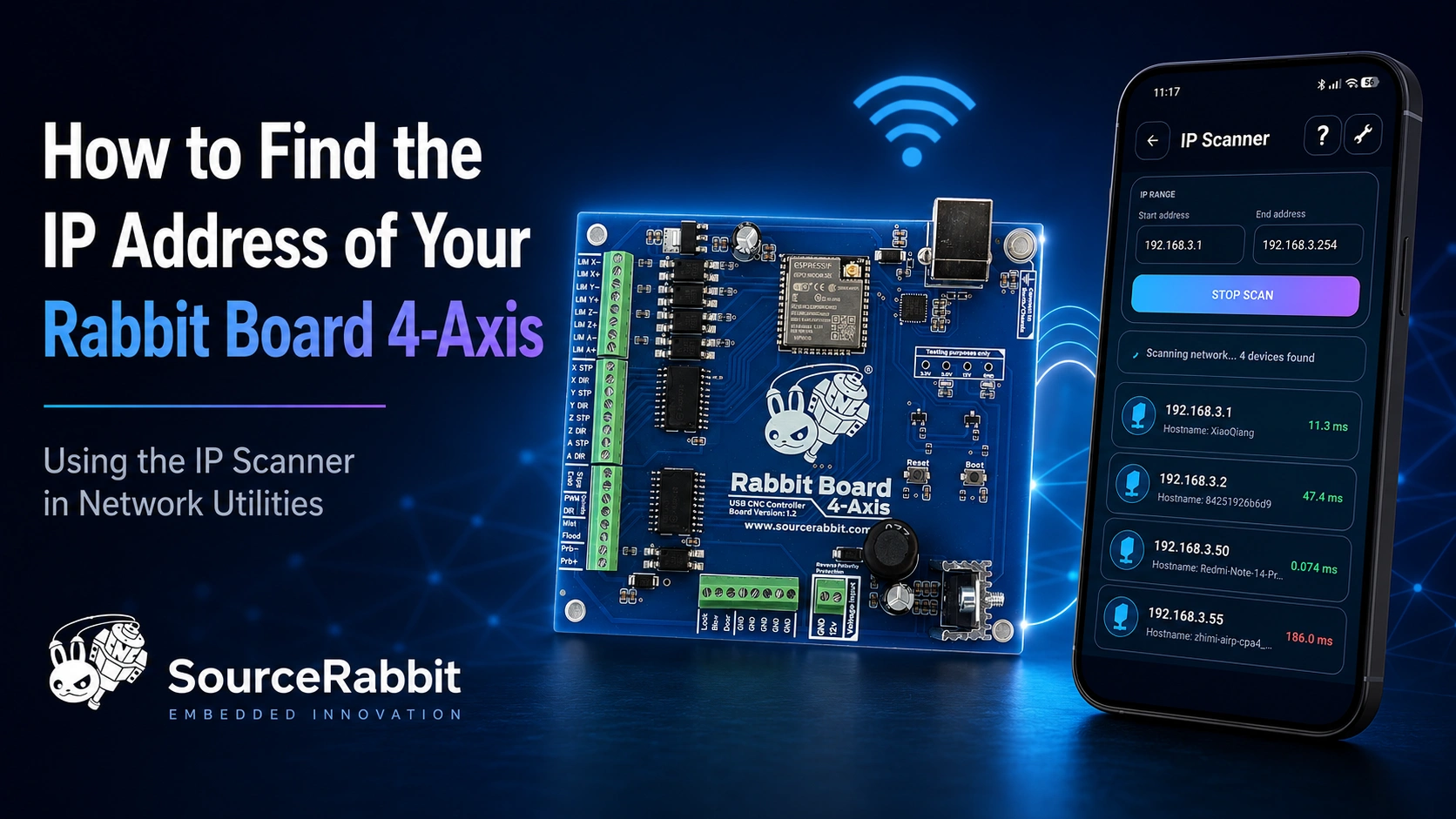
We frequently receive messages from customers who have successfully connected their Rabbit Board 4-Axis to a wireless router or access point but cannot easily determine the IP address assigned to the board.
This is a common situation and does not normally indicate a problem with the Rabbit Board.
When the Rabbit Board connects to your local Wi-Fi network in Station Mode, the router usually assigns an IP address automatically through DHCP. This address may be different on every network and can occasionally change after restarting the Rabbit Board or the router.
Fortunately, you can quickly find the Rabbit Board IP address from an Android phone or tablet using the IP Scanner included with Network Utilities Ultimate.
What You Will Need
Before starting, make sure that:
- The Rabbit Board 4-Axis has been configured to connect to your Wi-Fi network.
- The Rabbit Board is powered on.
- Your Android phone or tablet is connected to the same Wi-Fi network.
- Network Utilities Ultimate is installed on your Android device.
Scan Your Network for the Rabbit Board
Open Network Utilities Ultimate on your Android device and select IP Scanner.
Start a scan of your local Wi-Fi network. The application will search the network and display the devices it discovers, together with their IP addresses and any additional information that is available.
Look through the results for a device that could be your Rabbit Board 4-Axis.
Depending on your router and network configuration, the Rabbit Board may not always appear with an easily recognizable hostname or manufacturer name. In this case, the simplest way to identify it is to compare two network scans.
The Easiest Way to Identify the Rabbit Board
Follow these steps:
- Turn off the Rabbit Board 4-Axis.
- Run a network scan with the IP Scanner.
- Turn the Rabbit Board back on.
- Wait a few seconds for it to connect to the Wi-Fi network.
- Run the network scan again.
- Compare the two scan results.
The new device that appears after powering on the Rabbit Board will normally be the Rabbit Board 4-Axis.
Note its IP address. It will usually look similar to:
192.168.1.105
The exact address will depend on your local network.
Connect to the Rabbit Board from Focus
After finding the IP address, open SourceRabbit Focus and go to the connection window.
Select the Network (WiFi, Ethernet) connection tab and enter:
- IP Address: The address discovered by the IP Scanner
- Port:
5001
You can then connect to the Rabbit Board through your local network.
Your computer running Focus and the Rabbit Board must be connected to the same reachable network.
What If the IP Address Changes?
Most routers assign local IP addresses dynamically. This means that the Rabbit Board may receive a different IP address after the board or router is restarted.
When this happens, simply scan the network again with Network Utilities Ultimate.
For a more permanent solution, you can also create a DHCP reservation for the Rabbit Board through your router settings. This allows the router to assign the same IP address to the board whenever it connects.
The Rabbit Board Appears, but Focus Cannot Connect
When the Rabbit Board appears in the IP Scanner but Focus cannot connect to it, check the following:
- Confirm that you entered the correct IP address.
- Confirm that the TCP port is set to
5001. - Make sure the computer and Rabbit Board are on the same local network.
- Avoid guest Wi-Fi networks that prevent connected devices from communicating with each other.
- Check whether your router has wireless client isolation or access-point isolation enabled.
- Confirm that the Rabbit Board has successfully connected to the Wi-Fi network.
For complete Wi-Fi configuration and troubleshooting instructions, read our Rabbit Board Wi-Fi setup guide.
Find Network Devices from Your Android Phone
Network Utilities Ultimate provides a collection of practical networking tools for Android, including:
- IP Scanner
- WiFi Analyzer
- Ping
- Port Scanner
- DNS Lookup
- Traceroute
- Subnet Calculator
- SSH Terminal
The IP Scanner is useful not only for finding the Rabbit Board 4-Axis, but also for discovering computers, printers, routers, servers, CNC controllers and other devices connected to your local network.