
Importing STEP and DXF Files
Learn how to import STEP and DXF geometry into RabbitCAM X, choose the correct file filter, check the imported model, and save your work as a RabbitCAM X project.
Supported File Types
RabbitCAM X uses the Load File window to import supported CAD files and open saved RabbitCAM X projects.
| File type | Extensions | Purpose |
|---|---|---|
| STEP File | .stp, .step | Import CAD model geometry, including surfaces and solid models, for machining. |
| DXF File | .dxf | Import drawing geometry such as profiles and curves. Use ASCII DXF when exporting from your CAD application. |
| RabbitCAM X Project | .rxcam | Reopen a saved RabbitCAM X project, including its CAD geometry and saved CAM setup. |
Choose a STEP or DXF file when you want to start from design geometry. Choose the .rxcam file when you want to continue working on an existing RabbitCAM X project.
Opening a CAD File
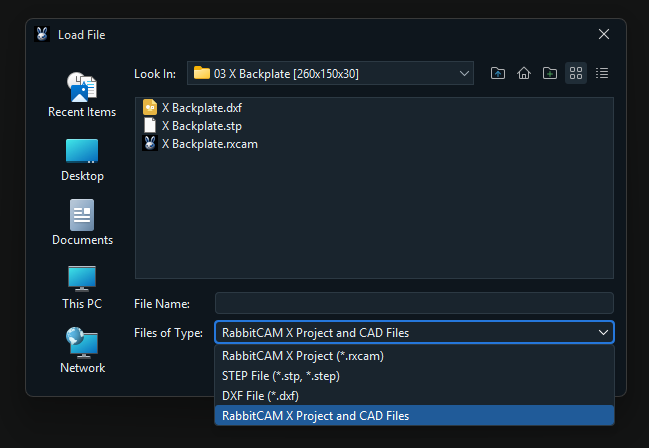
Save any work you want to keep before loading another file.
- Open File > Load File, or click Load File in the main toolbar.
- Navigate to the folder containing your CAD file.
- Use Files of Type to choose STEP File (*.stp, *.step) or DXF File (*.dxf). You can also leave RabbitCAM X Project and CAD Files selected to display all supported CAD and project files.
- Select the file you want to import and confirm the selection, or double-click the file.
- Wait for the loading process to finish. RabbitCAM X displays the progress while it reads and prepares the geometry.
- Open the Model tab to inspect the imported part and its setup.
The example above shows a DXF file, a STEP file, and a RabbitCAM X project with the same base name. Check the extension so that you open the intended file.
Checking the Imported Geometry
After loading the file, inspect the geometry in the 3D view before creating machining operations.
- Rotate, pan, and zoom to check that the expected surfaces, profiles, and holes are present.
- Use Measure to compare a known dimension with the original design and confirm that the imported size is correct.
- Check the part orientation and position in the Model tab.
- Review Stock. RabbitCAM X creates an initial stock from the imported geometry bounds; adjust its dimensions and position to match your actual starting material.
- Check the Workpiece Coordinate System before setting up machining operations.
For a walkthrough of the workspace and mouse controls, see User Interface and Navigation.
If import diagnostics appear, review them before continuing. A file can load with warnings about individual geometry items, so compare the result with the original design.
Saving and Reopening Your Project
Save your CAM work as a RabbitCAM X Project (.rxcam) so that you can return to it later.
- Choose File > Save Project, click Save Project in the toolbar, or press Ctrl+S.
- On the first save, choose a destination folder and enter a project name.
- Confirm the save. RabbitCAM X adds the .rxcam extension if needed.
The project stores the CAD geometry together with the saved stock, workpiece coordinate system, work holding, tools, and machining operations. Use File > Save Project As to save your work under a different name or in another location.
To continue later, open File > Load File and select the .rxcam file. Loading the original STEP or DXF file imports its design geometry; opening the project restores the CAM setup you saved.
If a File Is Missing or Does Not Import
- The file is not visible: check the current folder and the Files of Type filter. Select the matching format or RabbitCAM X Project and CAD Files.
- A DXF file does not import: confirm that it was exported as ASCII DXF. If necessary, export it again from the original CAD application.
- Geometry is missing or looks incomplete: review any import diagnostics and compare the exported file with the source design in your CAD application.
- The imported size is incorrect: check the units used when exporting the CAD file and compare a known dimension using Measure.
If the problem continues, contact SourceRabbit Support with your RabbitCAM X version, the file format, and the exact error or diagnostic message. Include a sample CAD file if you are able to share it.